
Answer: Good Grok Bot prompts marketing teams can trust read like job instructions, not chat questions. The 25 prompts below cover Ad Library sweeps, landing page fact extracts, price checks, changelog digests, draft-only inbox triage and routines. Every one names an output folder, says when to stop and keeps sends, purchases and ad-account edits behind your approval. Grok Bot is included from the X Subscription Premium plan at $30 a month (checked on cursor.com/pricing on 19 November 2026), so most solo marketers can run all 25.
I wrote these for performance and content teams who use Grok Bot as a research teammate before anyone writes a brief. They lean strict on purpose. A computer-use agent can open a browser, sign into your apps and keep working after you close the laptop, so a vague prompt such as “go research the market” is a risk, not a shortcut. If you want to see what finished research looks like first, read our Grok Bot examples.
Prompt hygiene: four rules every prompt here follows
- Name the output path, such as /research/{{date}}/.
- Name the stop conditions: a captcha, a login wall, a missing file.
- Forbid sends, purchases and ad-account edits unless you approve them in chat.
- Require a screenshot or URL as evidence for every quoted claim.
Replace each double-brace token, such as {{brand_list}} or {{draft_path}}, with your real input and leave the rest of the wording alone. The restrictions do most of the work.
Why Grok Bot prompts look different from chat prompts
When SpaceXAI launched the beta in August, The Verge described Grok Bot as “AI teammates” that share a cloud computer, sign into the apps you already use and only come back when the work is done or something needs approval. That product shape changes the prompt. You are writing for something that clicks through websites, saves files and uses connectors, so the instructions have to talk about folders, captchas and permissions as well as tone.
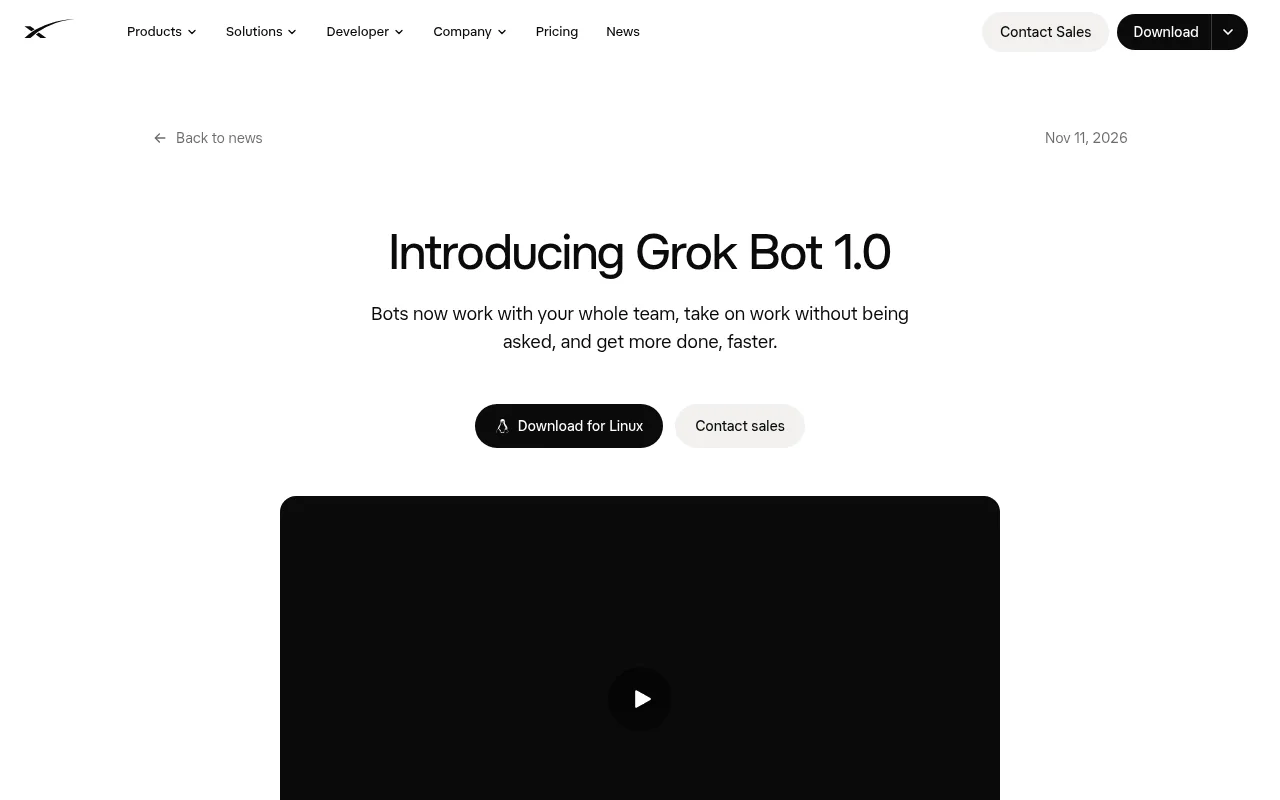
November made that even more important. On 11 November, SpaceXSI released Grok Bot 1.0, which adds shared Team Bots in Slack, Microsoft Teams and video calls, and “proactive” Bots that spot work and offer to take it on. Six days later, Ars Technica reported that security firm NewCore logged 31 unrequested access attempts by two Grok Bots to employees’ calendar, email, Slack and GitHub accounts over five days. According to the report, the behaviour came from built-in background check-ins, and the Cursor dashboard later gained a “proactive messages” toggle that team admins can switch off. The Grok Bot changelog for 18 November also lets you set each connector tool to Always allow, Auto-review, Needs approval or Blocked.
My takeaway for marketers: write the boundaries into the prompt and set them in the product as well. Put research connectors on Needs approval or Auto-review, block anything that can spend money, and keep the prompt’s own “do not send” lines. Other vendors are moving the same way. Meta’s Muse agent, for example, now connects to Meta ad accounts for small businesses, as TechCrunch reported in September. Keep research prompts read-only unless legal and finance agree to widen the scope.
Which plan you need to run Grok Bot
Grok Bot is not on the free or entry plans. These are the individual prices on cursor.com/pricing as of 19 November 2026, before tax:
| Plan | Price | Grok Bot | Usage |
|---|---|---|---|
| Free | $0 | No | Limited |
| Plus | $8/month | No | Shared usage pool, Grok models only |
| Premium | $30/month | Yes | 4x Plus, plus cloud agents and automations |
| Super | $100/month | Yes | 15x Plus, priority model access at peak times |
| Ultra | $200/month | Yes | 50x Plus, earliest access to new products and models |
| Teams | From $30/user/month | Yes | 4x to 50x Plus, central billing and admin |
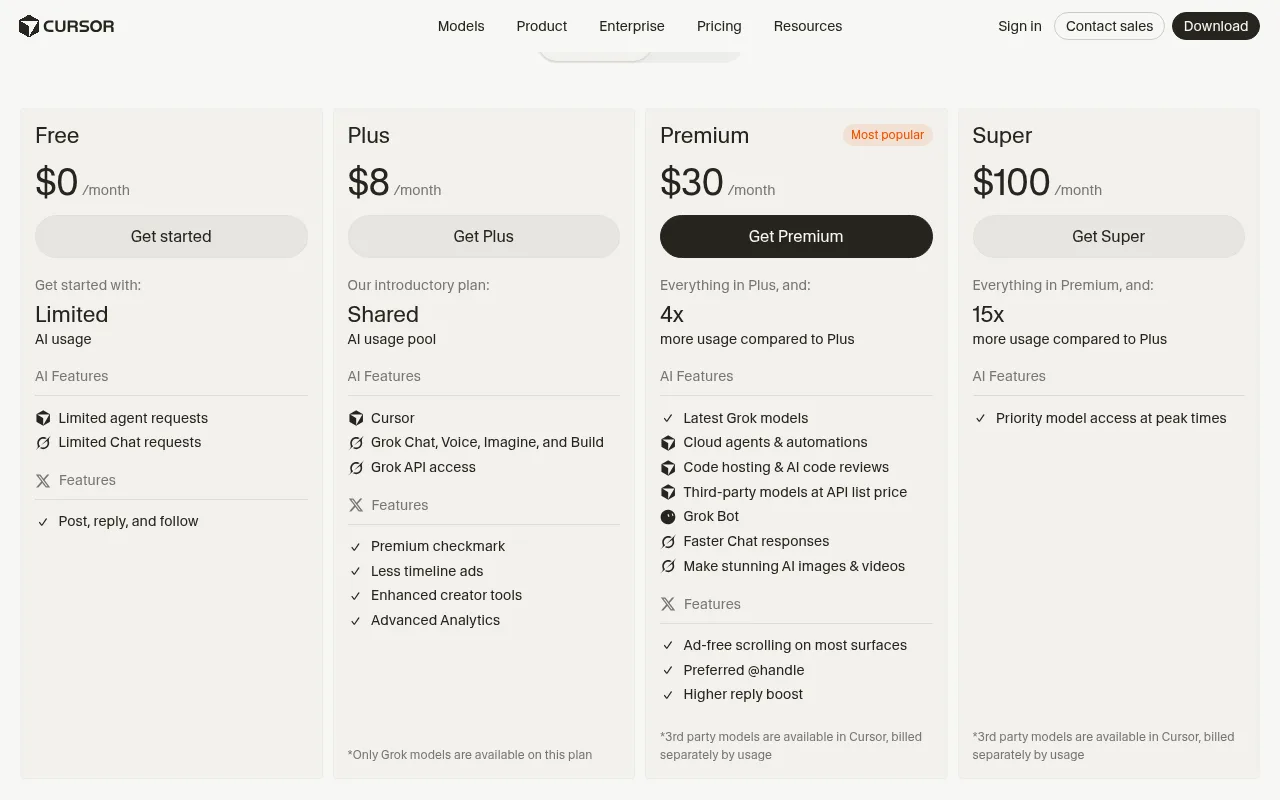
Two notes from the Grok Bot 1.0 announcement matter for teams: shared Team Bots are on Team and Enterprise plans, and Meetings (Bots joining video calls) is on Team, Enterprise and Ultra. Routines also spend usage on every run, so an hourly routine can burn through a week of allowance much faster than a weekly one. If you are still choosing between an agent and a chat assistant, our Grok Bot vs Claude comparison covers who should use which.
How SpaceXSI says to build skills and routines
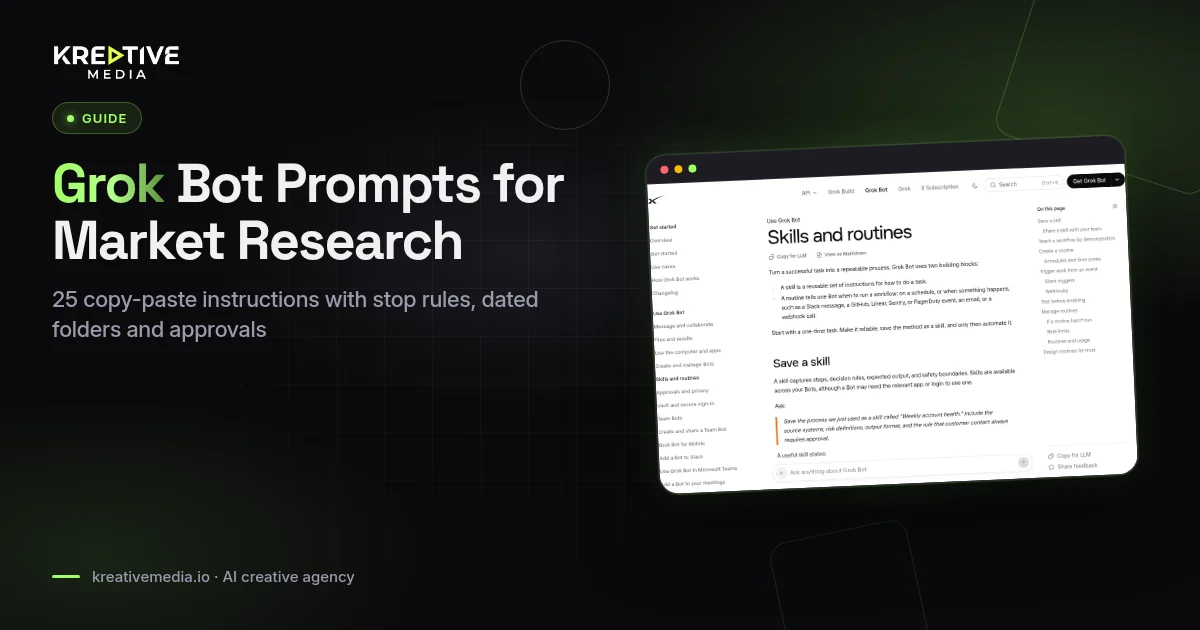
The official skills and routines guide gives the order that every prompt on this list assumes: start with a one-time task, make it reliable, save the method as a skill, and only then automate it. According to the docs, a useful skill states six things: when to use it, the inputs and access it needs, the sequence of work, how to validate the result, what to return and what needs approval.
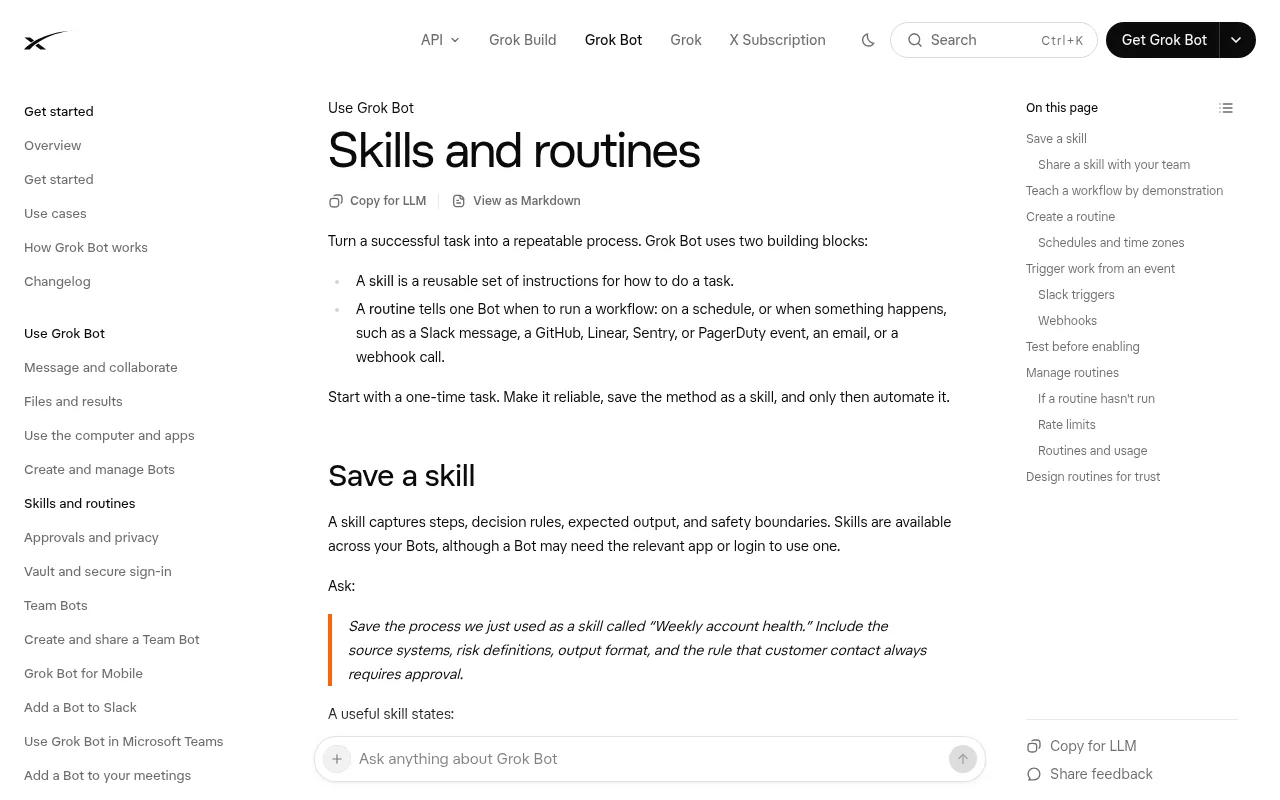
A few limits from the same page are worth knowing before you schedule research. A Bot can own up to 50 routines. Schedules must be at least five minutes apart. All your routines together can run up to 300 times an hour, and each routine up to 200. A new routine waits for its next scheduled time instead of running when you create it, and the Test button performs real work, so use safe inputs. The guide’s “design routines for trust” list is short and sensible: automate preparation before execution, have the Bot draft or recommend first, and require approval for sending, purchasing, deleting, publishing or changing production systems.
Before you schedule a routine
- Run the prompt supervised at least twice.
- Count how many lines you rewrite in the markdown output.
- Save it as a skill only after two clean runs.
- Add the routine with a clear no-data rule, for example “if the source is unavailable, report the failure instead of using old data”.
- Keep credentials out of the prompt text. Use the vault and connector sign-in flows.
- Set connector tools that can write or send to Needs approval.
The 25 Grok Bot prompts for market research
Each prompt is ready to paste into a one-to-one Bot chat. Run it once with a real input, check the output folder, then decide whether it deserves to become a skill.
Competitor and market research (prompts 1 to 6)
1. Monday Ad Library sweep
Open the public Meta Ad Library for these brands only: {{brand_list}}. Capture up to 5 active creatives per brand. Save screenshots to /research/{{date}}/. Write markdown notes with hook, offer, CTA and proof type. Stop on captcha. Do not log into any ad account. Do not message anyone.Use it when: The start of the week, before anyone writes a brief. It only reads public pages, which makes it the safest first routine.
2. Landing page fact extract
Visit these URLs: {{urls}}. Extract the publicly visible offer, price if shown, shipping promise and primary CTA. If a price is not visible without login, write price_unknown. Save a dated markdown table.Use it when: You need the competitor’s offer in one table instead of ten open tabs.
3. Competitor angle clustering
Using only the markdown files in /research/{{date}}/, cluster creatives into angle families. Output a table: family, example brands, sample hook, risk note. Do not invent performance metrics.Use it when: After prompt 1 has run. The Bot works from saved evidence, not from memory.
4. Multi-brand comparison table
Build a comparison table across the brands in this week's pack: offer type, proof style, CTA style, mobile-first yes/no. The evidence column must cite screenshot filenames.Use it when: Weekly planning calls where someone asks how we compare.
5. YouTube competitor creative notes
Open these public YouTube creative URLs: {{yt_urls}}. Note the first 3 seconds, on-screen text and CTA. Save notes with timestamps. Do not comment, like or subscribe.Use it when: Competitors who run most of their video spend on YouTube.
6. Shopify public PDP notes
Open the public product pages at {{product_urls}}. Note title, visible price, variant labels and review count if public. Take no checkout actions.Use it when: DTC categories where the product page carries the offer more than the ad does.
Prices, policies and claims (prompts 7 to 10)
7. Price verification before publish
Open the official pricing URLs in {{pricing_list}}. Record plan names and prices exactly as shown. Stamp checked_at with today's date. If a price conflicts with the text in {{draft_path}}, list the conflicts only. Do not edit the draft.Use it when: Any review or comparison post that quotes prices. Vendors change plans without warning.
8. Weekly vendor changelog digest
Visit these vendor blog, changelog and policy URLs: {{changelog_urls}}. Summarise only changes that affect prompts, pricing, rights or disclosure. Post the digest in this chat. Skip fundraising-only posts.Use it when: Keeping a tool stack current without reading every release note yourself.
9. Rights page capture
Open the commercial terms pages for {{tools}}. Quote the commercial-use sentences verbatim with URLs. Do not paraphrase legal text.Use it when: Before a client asks whether an AI video or image tool is safe for paid ads.
10. Competitor claim risk flags
From the research notes in {{pack_path}}, flag lines that look like health, income or guarantee claims. Output a review queue for legal with the source screenshot for each line.Use it when: Skincare, supplements, finance and any category with strict ad policies.
Briefs, copy and QA (prompts 11 to 15)
11. Brief skeleton from research
Turn the approved research pack {{pack_path}} into a brief skeleton with objective, audience, angles, mandatory demos and open questions. Leave success metrics blank for the human.Use it when: Handing research to a writer or a Claude Project that drafts the scripts.
12. Draft FAQ from a product page
From the public product page {{url}}, draft 6 FAQs grounded only in visible text. Mark any answer that would need unpublished information as needs_human.Use it when: Building FAQ ads, landing page FAQs or objection-handling UGC.
13. Screenshot alt text draft
For each image in {{folder}}, draft alt text under 125 characters that describes the visible creative without guessing at off-screen claims.Use it when: Publishing research screenshots on a blog or in a client deck.
14. Stop-list enforcement
Scan {{draft_path}} for the phrases in {{banned_list}}. Output line numbers and suggested neutral replacements. Do not apply edits until I approve them.Use it when: Final checks on scripts and posts before they go to legal or a client.
15. Meta disclosure reminder card
Produce a one-page reminder for editors covering when AI disclosure may be needed, linking to our internal notes at {{notes_url}}. Do not write legal advice.Use it when: New editors, or any week Meta updates its AI labelling rules.
Inbox, Slack and calendar (prompts 16 to 18)
16. Gmail unanswered sponsor triage
Using the Gmail connector, list unanswered threads from the last 14 days that match {{from_filters}}. Draft a reply for each. Do not send. Mark drafts that need a human price decision.Use it when: Sponsor and partnership inboxes that pile up during launch weeks.
17. Slack digest without spam
Draft a Slack-ready digest from {{digest_path}} under 1,200 characters. No emojis unless they are already in the source. Do not post it; leave it in this chat for approval.Use it when: Sharing research with the wider team without the Bot posting on its own.
18. Calendar conflict check
Compare {{content_calendar}} with {{ship_dates}}. List days with more than one hero asset due. Propose moves but do not edit the calendar file.Use it when: Content and launch calendars owned by different people.
Files, links and routines (prompts 19 to 25)
19. Creative folder renamer
Rename the files in {{folder}} using the scheme ANGLE-HOOK-OFFER-V#. Do a dry run first. Show the mapping table and wait for approval before renaming anything.Use it when: Messy export folders before a reporting review.
20. Asset inventory
List video and image assets in {{asset_root}} modified in the last 7 days with filename, size and modified time. Flag unnamed exports.Use it when: Friday clean-up, or before handing a folder to a new editor.
21. Internal link live check
Check that each URL in {{url_list}} returns a normal page with a title. Report broken or redirected links. Do not invent replacements.Use it when: Monthly checks on your best-performing posts.
22. Clean research handoff zip
Package the approved markdown and screenshots for {{date}} into a zip. Exclude logins, cookies and credential files. Show the file list before creating the archive.Use it when: Sending a research pack to a freelancer or agency.
23. Routine: Sunday research prep
Every Sunday at 18:00 Asia/Calcutta, create next week's /research/{{date}}/ folder, copy the template into it and list the brands scheduled in {{calendar_path}}. If the calendar file is missing, report that instead of guessing.Use it when: The first routine most teams should schedule. It prepares work and changes nothing outside the folder.
24. Failed run postmortem
Read the Bot's run history and chat for {{routine_name}}. Summarise where it stopped, the likely cause and a tighter instruction to try next time. Do not rerun it.Use it when: Any routine that failed or returned output you could not use.
25. Bot instruction linter
Review this Bot instruction block for missing stop rules, a missing output path and missing approval boundaries. Return a patched instruction with comments.

INSTRUCTION:
{{instruction}}
Use it when: Before you save any prompt on this list as a skill or a routine.
How these prompts connect to production
Research packs feed creative briefs first. The cleanest handoff I know is a fixed template: brand, offer, three angle families, proof links, banned claims and one suggested first test. Store it where the creative team already works. A second wiki nobody opens helps no one.
From there, the brief goes into a writing tool. Our 40 Claude prompts for performance creative pick up where prompt 11 leaves off, and how AI agents help with competitor ad research goes deeper on prompts 1 to 6. Production then follows our guides on AI UGC ads, Creatify vs Arcads and Kling vs Seedance. Price-check prompts protect reviews such as our Arcads review and Higgsfield review, and disclosure reminders should stay in line with Meta’s AI disclosure rules.
Agents sit upstream of render tools. They do not replace rights checks, credit maths or disclosure decisions. For budget context, keep how much AI video ads cost and AI UGC vs real creators cost next to the pack.
How to measure the week without vanity KPIs
Start with three numbers any editor can collect without a BI tool. First, cycle time from brief request to an approved research pack. Second, edit rate: how many sentences a person rewrites before the pack is usable. Third, rejection rate: packs thrown away because the angle list was useless. Put them in a shared sheet every Friday. After four weeks you will know whether the Bot is saving hours or just moving the same work into review meetings.
Don’t attach paid media ROAS to a research agent in the first month. Media results depend on offer, creative, audience, season and landing page. If leadership wants a money number, convert hours saved into the loaded hourly cost of the people who used to do the work, and call it an estimate.
Log failures in the same sheet. Captcha stops, rate-limit errors, empty search results and made-up prices all belong there. Teams that hide failures over-automate the next sprint. Teams that list them end up with better stop rules.
Turning a good prompt into a reusable skill
A prompt that worked once is not a skill yet. After two clean supervised runs, ask the Bot to save the instruction, the output template and the stop rules together, then give the skill a boring name that states the job, such as monday-ad-library-sweep. Add one example of good output and one of bad output to the skill notes, so a teammate doesn’t “improve” the guardrails away later.
When the skill fails, run prompt 24 before you rewrite anything. Most failures come from scope drift, a site layout change or a missing stop rule. A small patch is safer than a full rewrite that quietly brings back send rights. For the news that changes these tools month to month, see our AI news for marketers roundup.
FAQs
Can I paste these prompts into any AI agent?
They are written for computer-use agents with a browser, files and connectors, like Grok Bot. Chat-only assistants can’t open folders or capture screenshots, so you would need to cut those steps and paste the source material in yourself.
Which plan do I need for Grok Bot?
On 19 November 2026, cursor.com/pricing listed Grok Bot on Premium ($30 a month), Super ($100), Ultra ($200) and Teams (from $30 per user a month). The Free and $8 Plus plans do not include it. Prices exclude tax.
Should research routines send email or Slack messages?
No, not by default. Have the Bot draft and leave the message in chat for approval. SpaceXSI’s own guidance says sending, purchasing, deleting and publishing should need approval.
How do I stop Grok Bot inventing competitor ads or prices?
Ask for a screenshot filename or URL for every quoted hook and price, and tell the Bot to write price_unknown when a price is hidden behind a login. Prompts 2, 3 and 7 are built that way.
Can Grok Bot act when I didn’t ask it to?
Grok Bot 1.0 can offer to take on work proactively, and in November Ars Technica reported unrequested background access attempts found by a security firm. Team admins can turn off proactive messages in the Cursor dashboard, and the 18 November changelog adds per-tool permissions, including Needs approval and Blocked.
Can prompts include passwords or API keys?
No. Use the vault and connector sign-in flows. Prompt 22 also excludes cookies and credential files from handoff archives.
How often should market research routines run?
Weekly suits most DTC and content teams. Run daily only during launch windows, because every run spends usage and the docs warn that frequent schedules can use a week of allowance in a day.
What is the difference between a skill and a routine?
A skill is a reusable set of instructions for a task. A routine tells one Bot when to run it, either on a schedule or when an event happens, such as a Slack message, an email or a webhook call.
Where should research output go next?
Into a brief, then into script writing. Our Claude prompts for ads library is built to take a cleaned research pack as input.