Short answer: to keep a product logo consistent in AI video, start from a sharp image with the logo facing the camera, lock the product with the reference or element tools your model offers, pin the first and last frames, keep the camera move small, and composite the real label in post when it still drifts. The tools give you more control than they did a year ago. As of 26 November 2026, Kling 4.0 accepts up to 10 keyframes and 15 reference assets in one task, Veo 3.1 takes up to three reference images of a product, and Seedance 2.5 accepts up to 30 reference images. None of them can promise a pixel-perfect label in every frame, so the last step still matters.
This guide to keeping a product logo consistent in AI video covers why logos warp, what each major model offers for keeping a label steady, and the seven fixes our team uses on product clips. The model specs come from each vendor’s own documentation, checked on 26 November 2026. We haven’t published a scored label test for these models, so you won’t find pass rates here. You’ll find the controls that exist, how to use them and a QA checklist to run before a clip goes into an ad.
Why do AI video tools warp logos?
Video models don’t “know” your logo. They see it as a pattern of pixels in the first frame and try to keep it plausible while everything moves. Every frame is a new prediction, so small text, thin strokes and low-contrast labels drift first.
It gets worse in three situations. The product rotates and the model has to invent a side it has never seen. The camera moves fast. Or the label takes up a small part of the frame. Once you know that, the fixes follow: anything that keeps the label large, front-facing and stable in the frame helps.
Which AI video tools give you the most control over a logo?
The honest answer is that no vendor guarantees readable text in every frame. What they do offer is different ways to anchor a product. Here is what each one documents today.
| Model (checked 26 Nov 2026) | Tools that help hold a logo | Clip length per generation |
|---|---|---|
| Kling 4.0 | Up to 10 keyframes on the timeline; Omni Reference with up to 15 assets (up to 10 images, 5 videos and 7 subjects) | Up to 30 seconds |
| Kling 3.0 | Start frame or start and end frames, plus up to 3 bound elements | Up to 15 seconds |
| Veo 3.1 | Up to 3 reference images of one person, character or product; first and last frame | 4, 6 or 8 seconds |
| Seedance 2.5 | Up to 30 reference images, 10 video clips and 10 audio clips; timestamp-level editing | Up to 30 seconds |
| Gemini Omni Flash 1.2 | Edits part of a clip without generating the whole thing again | 3 to 15 seconds |
Sources: Kling’s Kling 4.0 user guide and Kling 3.0 element guide, Google’s Veo 3.1 developer docs, ByteDance’s Seedance 2.5 launch post and Google’s Flow credits page. We left plan prices out of this guide because they change often and none of these fixes depends on them. Check the Kling pricing page or our AI video ads cost guide before you budget.
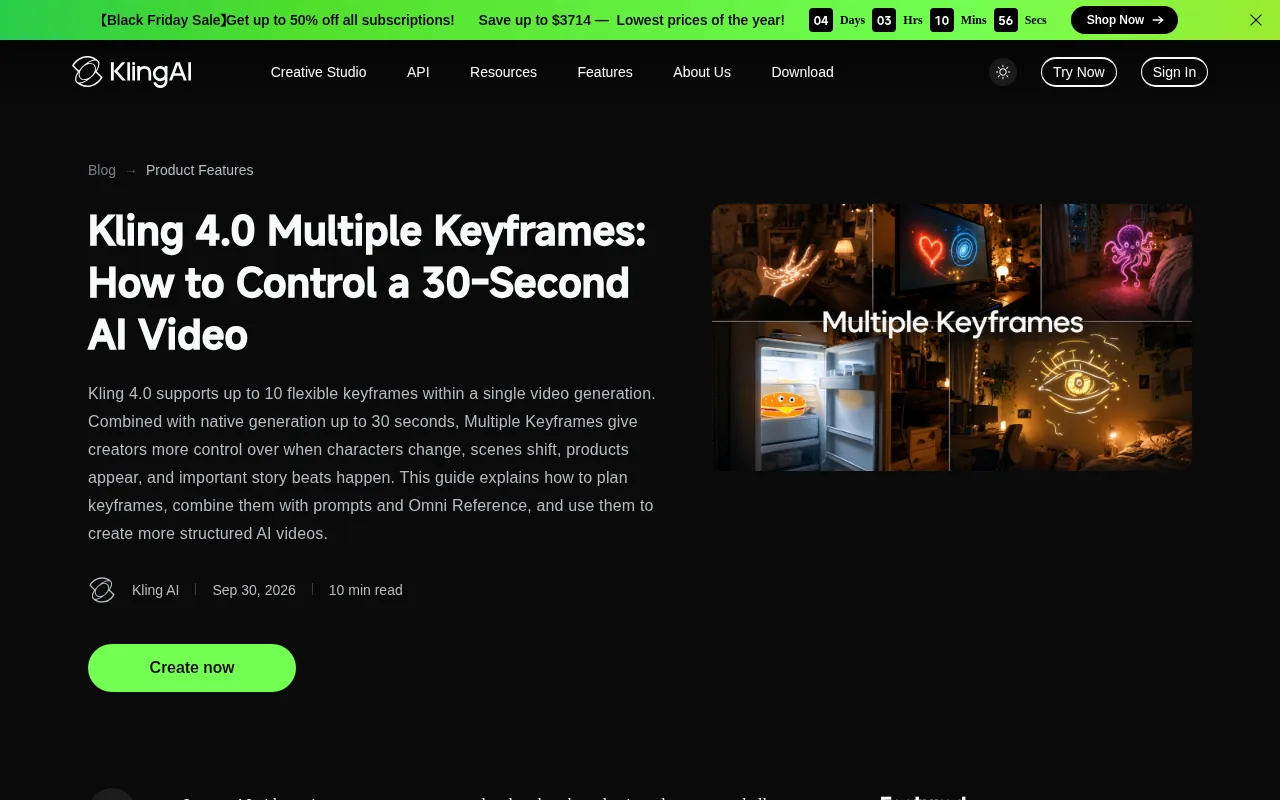
Kling 4.0
Kling 4.0 launched on 15 October 2026 and is the most useful model for this problem right now, mainly because of keyframes. Kling’s own keyframes guide spells out the split: keyframes define when something changes, and Omni Reference defines what should stay the same, including “product shape, color, materials, and branding.” One catch from the user guide: the Keyframes entry and Omni Reference can’t be combined in a single task, so choose per shot. Our Kling review covers credits and rights, and our Kling prompts for product videos give you ready-made prompts.
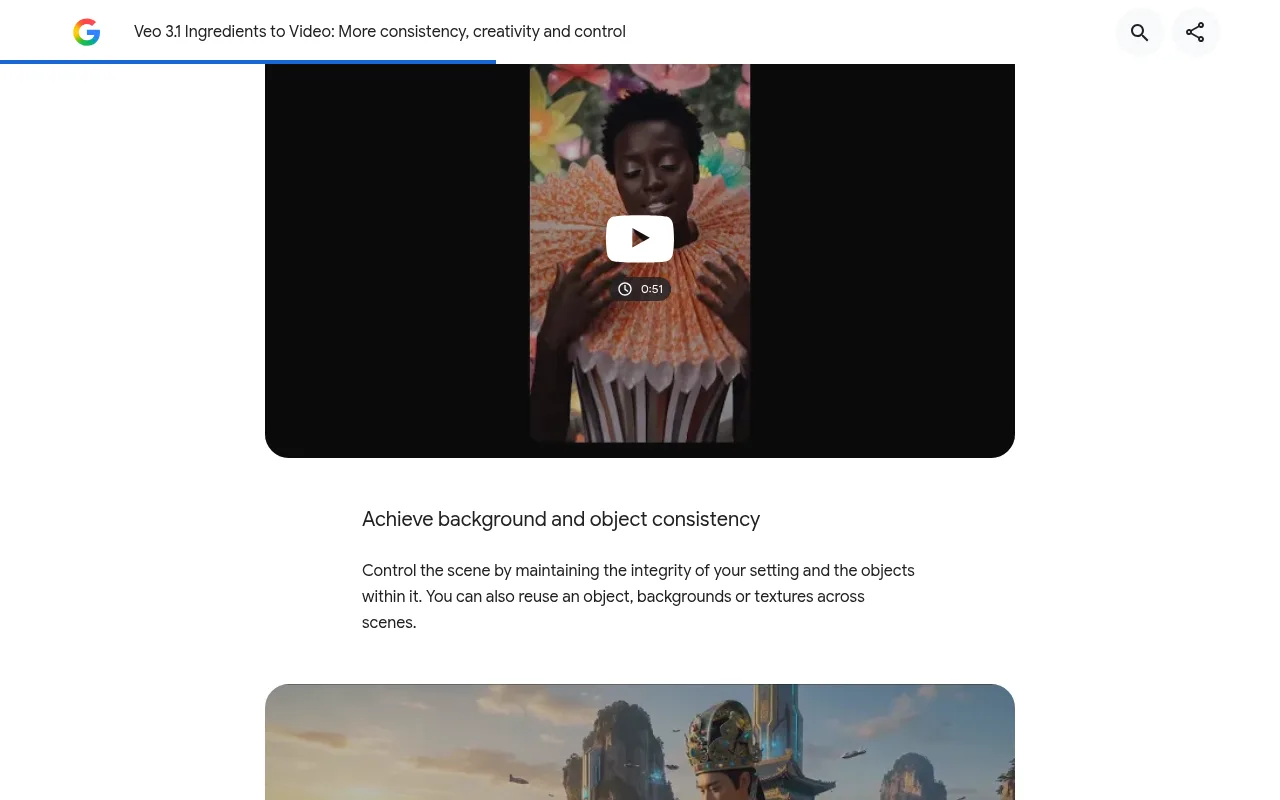
Veo 3.1
Google’s Veo 3.1 docs say you can provide up to three images of “a single person, character, or product” and that Veo preserves the subject’s appearance in the output. It also supports first and last frame generation. TechCrunch’s Veo 3.1 launch coverage noted that Google added audio to the reference, frames and extend features. One thing to plan around: in Google Flow, Veo 3.1 Fast and Veo 3.1 Quality retire on 5 December 2026, leaving Veo 3.1 Lite and Omni Flash 1.2. Our Seedance vs Veo comparison goes through what that change means for ad work.
Seedance 2.5
Seedance 2.5 takes the most reference material of the three: up to 30 images, 10 video clips and 10 audio clips in one pass, according to ByteDance’s launch post. It also offers timestamp-level edits, which helps when a label goes wrong for two seconds in the middle of a good take. Read our Seedance review for access routes and whether Seedance is safe for commercial use before you put its clips in paid ads.
Gemini Omni Flash 1.2
Google’s newer video model matters here for one reason: editing. As The Verge reported on 5 November 2026, Omni 1.2 Flash can make edits to a video without generating the entire clip again. If the label breaks in one moment, that’s a cheaper retry than a fresh generation.
Fix 1: Start from a sharp, front-facing first frame
Use image-to-video, never text-to-video, for branded products. Upload a high-resolution packshot (at least 1080px on the short side) with the logo facing the camera and filling a good part of the frame. The model copies what it sees in frame one, so a soft or tiny logo comes out worse, never better.
Fix 2: Keep the camera move small and slow
Slow push-ins, gentle parallax and small orbits (under 30 degrees) keep the label in view. Fast whip pans, full 360 spins and dramatic zooms force the model to invent new angles, and that is where letters swap. Kling says Kling 4.0 handles complex camera moves better than before, but a label that turns away from the lens still has to be guessed. If you need a full 360, shoot the real product on a turntable.
Fix 3: Describe the logo in the prompt
Add a line like: the label reads “ACME” in bold white sans-serif letters, unchanged throughout. Use your real brand name, spelled exactly, in capitals and quotes. Models with strong text rendering use this as an extra anchor. Don’t describe a different logo or a competitor’s mark, and don’t ask the model to write claims or legal text (more on that below).
Fix 4: Lock the product with reference images or elements
This is the fix that has improved most in 2026. Give the model the product from two or three angles as references, rather than a single start image:
- Kling 4.0: add product images in Omni Reference and name each asset’s role in the prompt.
- Kling 3.0: bind the product as an element (up to 3). Kling recommends binding elements that appear in the start frame.
- Veo 3.1: use Ingredients to Video with up to three images of the product.
- Seedance 2.5: attach several clean product shots and refer to them in the prompt.
Keep the reference images clean: plain background, even light, label fully readable. A reference with glare across the logo teaches the model the glare.
Fix 5: Pin the start, end and key moments
First and last frame control lets you fix the label at both ends of the clip. Supply two real photos of the product from slightly different angles and let the model animate between them. Kling 4.0 goes further with up to 10 keyframes, so you can also pin the moment the product turns to camera. Kling’s guide suggests planning a 30-second product video around a few keyframes, ending on “the final product hero shot.” For ads, make that last keyframe your approved packshot.
Fix 6: Generate short, make variants, judge frame by frame
Drift builds up over time. Kling 4.0 and Seedance 2.5 can now make 30-second takes, but for a hero product shot, two short clips cut together are usually easier to keep on-brand than one long one. Then budget for three generations per shot, because the same prompt can give a clean label on one run and a broken one on the next. Judge at full screen, frame by frame, never on a thumbnail.
Fix 7: Composite the real label in post
When a clip is perfect except for the label, track the label area in After Effects, DaVinci Resolve or CapCut and replace it with the real artwork. It’s the most reliable fix for hero shots, and it means you never have to reroll a great take for a few bad frames. If you work in Seedance 2.5 or Omni Flash 1.2, try their built-in edit first, then fall back to compositing.
A QA checklist before any AI product clip ships
- Brand name readable in every frame at full screen.
- Claim line and any legal text unchanged (or added in post as a text layer).
- Product shape, colour and cap match the real product.
- No extra or missing parts (pumps, lids, straps).
- Scale is believable next to hands or props.
- The clip still passes when paused on a random frame.
Can you legally show a changed logo in an ad?
A warped version of your own logo isn’t usually a legal problem, but a warped claim or ingredient line can be, because it may misstate what the product is. Our rule: legal text and claims are always added in post as a text layer, never generated. Check each platform’s AI labelling rules too. Our guide to disclosing AI ads on Meta covers the Meta side, and our complete AI video ads guide covers rights by tool.
FAQs
Why does AI change the text on my product?
Video models redraw every frame and treat text as a visual pattern, not as letters. Small, thin or rotating text drifts first, especially when the camera moves fast.
Which AI video generator is best for readable text?
No model guarantees readable labels in every frame. As of November 2026, Kling 4.0 gives the most control with up to 10 keyframes and 15 reference assets, Seedance 2.5 accepts the most reference images, and Veo 3.1 preserves a product from up to three reference images.
Can I fix a warped logo after generation?
Yes. Track the label area and composite the real artwork in After Effects, DaVinci Resolve or CapCut. Seedance 2.5 and Gemini Omni Flash 1.2 can also edit part of a clip without starting over.
Does a higher resolution help?
A sharp, high-resolution first frame and clean reference images help more than a higher output resolution. A blurry source logo stays blurry at 4K.
Should I put my brand name in the prompt?
Yes. Write the exact spelling in capitals and quotes and say it stays unchanged throughout. It gives the model one more anchor, but it won’t replace a good reference image.
Get help from Kreativemedia
Want product clips with labels that hold up, without testing every model yourself? Contact Kreativemedia or see our AI video ads service. Tell us about your product and channels, and we’ll tell you whether Kling, Veo, Seedance or a real shoot fits the brief.